We received an excellent tip from Ira Rainey of side lane digital development on a simple method of using Espionage with Dropbox.

The method does not involve storing Espionage’d folders inside of Dropbox (which can lead to issues), but rather using Espionage to easily and conveniently encrypt all of the files from your Dropbox on your Mac.
Step 1 – Create a folder called ‘Vault’ in your Home folder
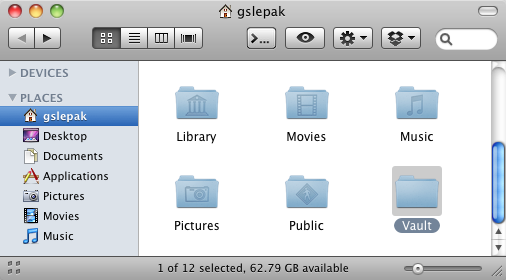
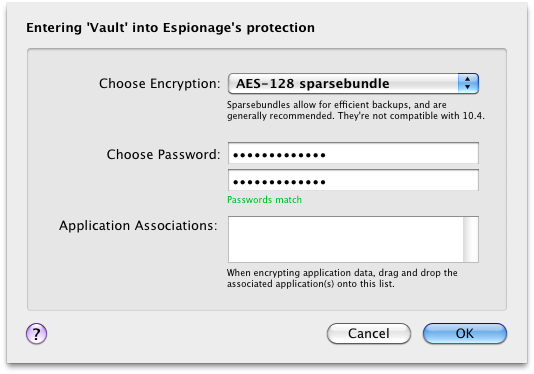
Step 2 – Add ‘Vault’ to Espionage
Step 3 – Associate Dropbox & Check ‘Launch At Login’
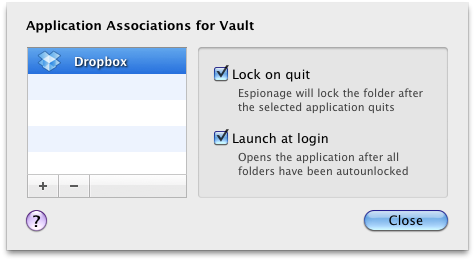
- Select ‘Vault’ in Espionage
- Click the ‘Edit Application Associations’ button
- Drop Dropbox onto the list, or select it after clicking the ‘+’ button
- Check the box to ‘Launch at Login’ (click ‘Yes’ if prompted to enable ‘Autounlock at login’)
- Click ‘Done’, then click ‘Save Changes’
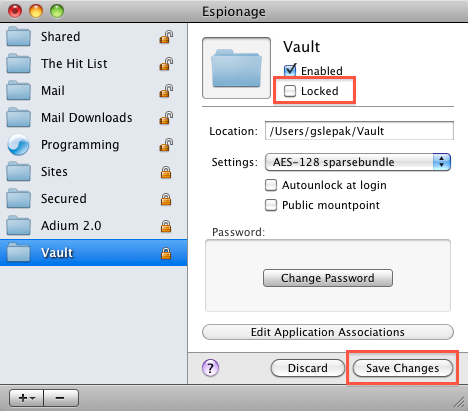
Step 4 – Unlock the Vault folder
Step 5 – Adjust Dropbox’s Preferences
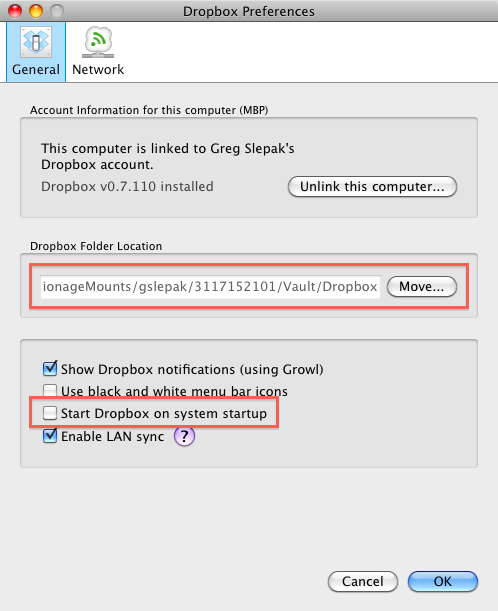
- Click the Move… button and select the unlocked Vault folder
- Uncheck the “Start Dropbox on System Startup” checkbox
That’s it!
Your Dropbox is now encrypted locally, you can now launch Dropbox (you’ll be prompted for the folder’s password). Dropbox will upload any changes to it securely over the internet, and the files are stored encrypted on their servers.
It’s important to note that if you sync your Dropbox with another Mac the files on that machine won’t be encrypted unless you repeat these steps there as well. We are still investigating whether it’s possible to get Dropbox to play nicely with a live Espionage’d folder that’s inside of it.
Many thanks to Ira Rainey for pointing this out! You can read more information about this tip on his blog.
We’re always interested in hearing about how our users use Espionage, so if you have any interesting tips you’d like to share with us don’t hesitate to let us know! 🙂